Applications are the targets Tahr can assess. Each record stores target URLs, setup status, authentication details, repository settings, and testing context.
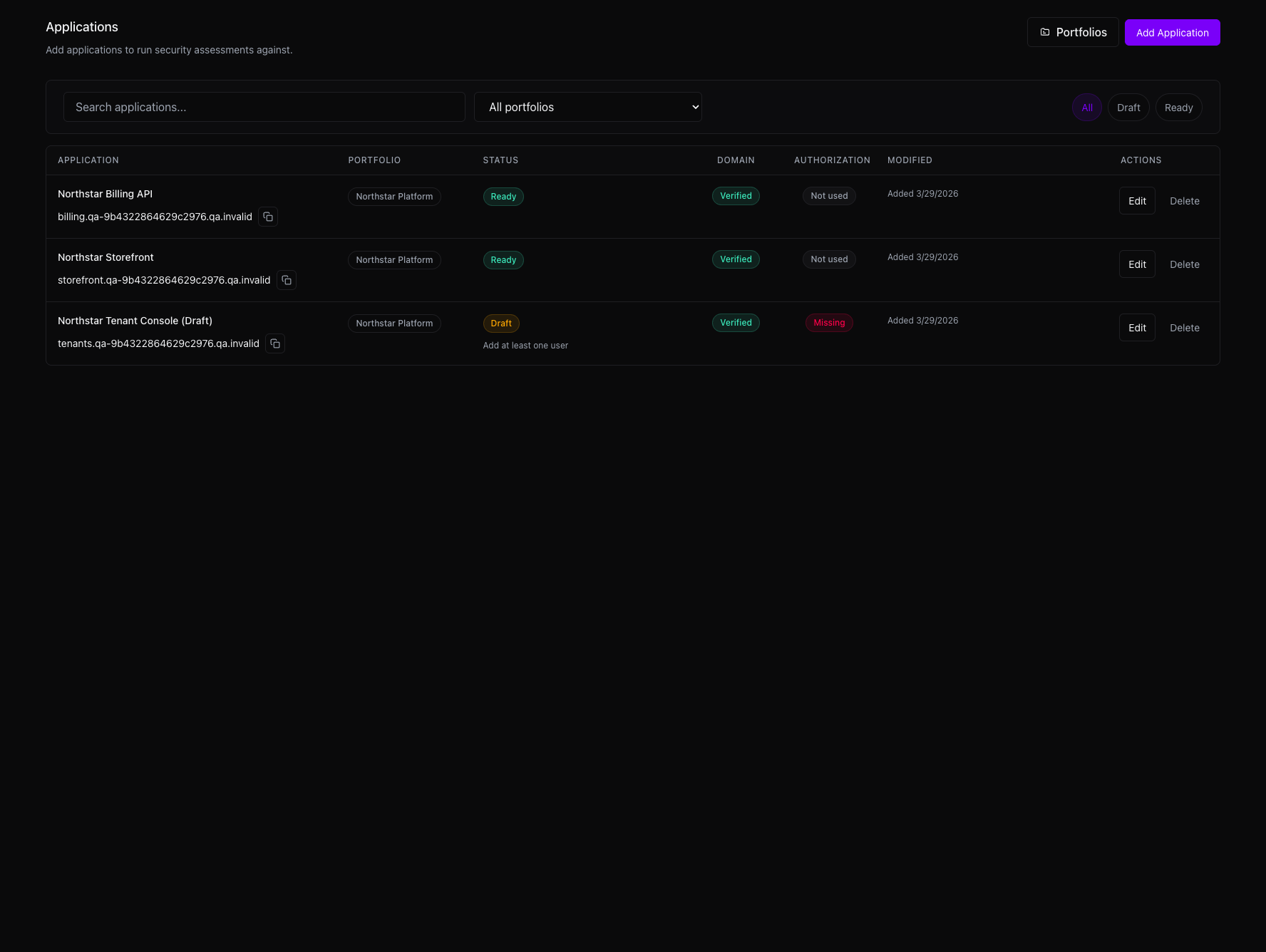
#Applications list
Use Search to find applications. When portfolio grouping is enabled, an optional portfolio filter and a Portfolios button appear above the list. Use All, Ready, and Draft to filter by setup status.
The list shows Application, optional Portfolio, Status, Domain, Authorization, Modified, and Actions columns. Available actions depend on your access.
API, sign-in automation, and other setup details are available in the application editor and readiness blockers.
#Add an application
From Applications, choose Add Application. Enter the basic target details first:
- Application name: the product or service name your team uses.
- App URL: the main web application URL, when a browser target is in scope.
- API URL: optional. If it is blank, Tahr uses the App URL when an assessment needs an API target. Add an API URL when the API is hosted at a different origin.
Use URLs that represent the real assessment scope. Tahr then shows the setup checks that apply to those choices.
#Target and assessment context
#WAF and reserved IPs
Answer Do you have a WAF? when the target sits behind a WAF, firewall, or IP allowlist. If assessment traffic must be allowlisted, configure a reserved IP before launch; see Reserved IPs. The WAF choice and target-specific context belong in the application, while provider connection steps belong in Integrations.
#Android APK
Enable the APK option when the application includes an Android app and you want Android Pentest. The workflow requires APK support, a non-empty uploaded APK, and an application URL. Leave it off for web, API, or source-only assessments; the full readiness guidance is in Application Setup.
iOS application testing is not currently supported.
#Application documents
After saving the draft, choose Upload when the document area is available. Supported formats include PDF, Markdown, text, DOCX, JSON, YAML, and PNG or JPEG. Documents are optional context for eligible workflows, especially Threat Modeling; they do not automatically affect every assessment. See Application Setup.
#Testing instructions
Use Testing instructions for direct, assessment-specific guidance: workflows to exercise, out-of-scope areas, actions to avoid, role or tenant boundaries, and unusual behavior that should not be reported. Do not put passwords, API keys, recovery codes, or other secrets in this field.
#Readiness and authenticated access
#Domain readiness
When verification is required, Tahr checks the application domain and API domain before assessment. If a domain is missing or pending, follow the blocker and see Where to verify a domain. Correct the hostname, scope, DNS verification, and any WAF or reserved IP requirement. Conditional inputs and readiness blockers are documented in Application Setup.
#Authenticated testing
Enable authenticated testing when important workflows require a session. Add the full public HTTP(S) Login URL where sign-in starts and configure dedicated test identities. The Login URL can be the application, a custom tenant identity provider, or another public authentication provider; it does not need to be a verified application domain. Authenticated Testing is the canonical guide for login, Authentication Check URL, roles, tenants, second factors, SSO, and sign-in automation.
#Login URL and Authentication Check URL
The Authentication Check URL must be a full URL on the configured application or API origin and return user-specific authenticated data, commonly /me, /profile, /account, /api/me, /api/user, or /api/profile. Do not use a public page, health check, static asset, or route that always returns 200; Tahr must be able to distinguish an authenticated response from an anonymous one. Public third-party or custom identity-provider redirects are allowed during sign-in, but the final check is on the application or API origin. See Login URL and Authentication Check URL.
#Extra context for authentication
Use Extra context for authentication for application-specific login guidance such as SSO redirects, tenant selection, fixed test CAPTCHA behavior, post-login confirmation, protected areas to avoid, or unusual session behavior. Keep it concise and free of secrets.
#Test identities
Use dedicated test identities with the least privilege needed. Describe each role, tenant, workspace, and ownership boundary, and provide intentionally different users when authorization testing compares access. Second-factor methods and managed email identities are covered in Authenticated Testing. Never reuse personal or production administrator accounts.
#Test users
Add each account that Tahr should use and map it to the correct role and tenant. Confirm that the account can reach the workflows in scope without granting unnecessary administrative access. For email codes or magic links, use the dedicated test inbox or managed address required by the configured flow.
#Optional inputs
#Repository access
Enable Repository access for source-code analysis or workflows that need application context. Select the connected provider integration, then provide the Repository URL and Branch; keep the default branch unless another branch is in scope. If the application and API use separate repositories, choose the repository relevant to the assessment. Connect GitHub, Bitbucket, or GitLab through Integrations, rather than adding provider setup details here.
#Ticketing destinations
Ticketing is separate from repository access. Connect Jira, GitLab, Azure DevOps, Linear, or any other ticketing integration available to your organization through Integrations. Scope the destination to All apps or Specific apps before creating tickets from findings.
#API file
Add an API file when Tahr should understand API structure before testing. Use an OpenAPI definition for REST or a GraphQL schema or introspection artifact for GraphQL. These inputs are optional but useful for API-heavy and authorization assessments.
#Custom HTTP headers
Use Custom HTTP headers only for approved assessment traffic, such as an environment or tracking header required by staging. Avoid long-lived secrets in headers unless that is the agreed access method.
#Sign-in automation
Use Sign-in automation for multi-step login, SSO redirects, tenant selection, or post-login prompts that credentials alone cannot represent. Add the Login URL, choose Record sign-in, complete the approved flow, and choose Finish recording. Allow pop-ups or use Open live view if the local recorder is blocked by a WAF or does not open. Wait for the recording to save, review its status and timestamp, and never capture unrelated secrets. Use Record again, Upload recording, Change file, or remove the recording when needed. For the detailed workflow, see Sign-in automation.
#Draft and ready states
An application remains a draft while required inputs are missing, such as domain verification, login details, repository access, or test users. It becomes ready when Tahr has enough information to run at least one supported assessment safely. Readiness is conditional on the chosen workflow; follow the blockers shown in Application Setup.
#Application context
Use Application context for reusable background: important workflows, out-of-scope areas, unusual behavior, business-critical roles, tenant boundaries, or testing limitations. Keep guidance specific and put credentials only in dedicated credential fields.
#Editing an application
Edit an application when target details change or when adding authentication, source access, API files, recordings, or other setup information after the draft. Avoid major target or credential changes while an assessment is running.
#Portfolios
When available, portfolios group applications by product, team, business unit, or environment. Open Applications, then choose Portfolios. Assign a portfolio during Basics when creating an application, or assign it later. Application editors can create a portfolio inline during creation when that option is shown. Portfolio availability and actions depend on your organization's enabled options and your permissions. Portfolios organize applications but do not replace application-level setup; see Portfolios.