Portfolios group applications inside an organization. Use them when your team manages many applications and needs a cleaner way to organize scope.
Good portfolio examples:
- Product lines.
- Business units.
- Engineering teams.
- Customer environments.
- Production versus staging groups.
- Compliance or audit scopes.
Portfolios are organizational labels. They do not change application permissions, assessment scope, authentication setup, or finding severity.
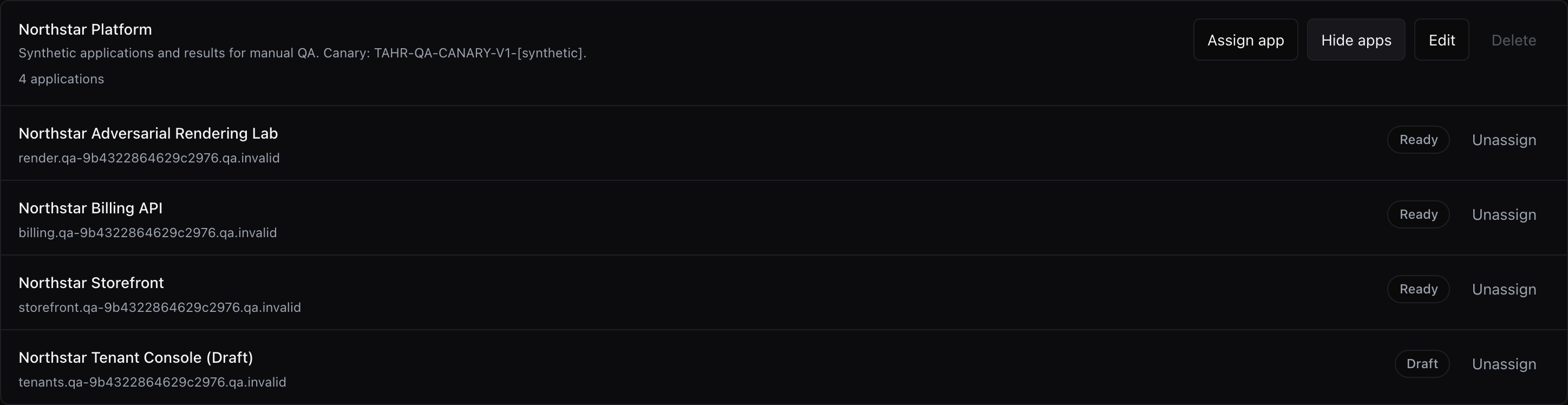
The Portfolios page lists each portfolio with its description, application count, and management actions.

#Availability and permissions
The Portfolios entry appears under Applications only when portfolio grouping is enabled and you have application read permission. You need application edit permission to create portfolios, edit portfolio details, assign applications, unassign applications, or delete portfolios.
If the Portfolios entry is not shown under Applications, continue managing targets from Applications. Ask your organization owner to review your application access, or contact Tahr Support if your team expects portfolio grouping.
#Create a portfolio
Open Applications, then choose Portfolios and Add Portfolio.
Add:
- Name: the portfolio name your team will recognize.
- Description: optional context, such as the team, environment, or business unit the portfolio represents.
Portfolio names must be unique within the organization. Tahr normalizes names before saving, so avoid names that differ only by spacing or letter case.
#Edit a portfolio
Use Edit from the portfolio list to update the name or description.
Changing a portfolio name does not change the applications assigned to it. It only changes the label shown in portfolio lists and filters.
#Assign applications
Applications can be assigned from the portfolio page or during application creation when the Assign to portfolio option is shown. Application editors can assign or create a portfolio during creation when those options are shown.
From the portfolio page:
- Open Applications, then choose Portfolios.
- Find the portfolio.
- Choose Assign app.
- Select the application.
- Save the assignment.
If the application already belongs to another portfolio, assigning it moves it to the selected portfolio.
#Unassign applications
Use Show apps on a portfolio to view assigned applications. Choose Unassign beside an application to remove it from the portfolio.
Unassigning keeps the application record, setup, credentials, assessments, and findings intact. It only removes the portfolio association.
#Delete a portfolio
You can delete a portfolio only after all applications have been moved or unassigned.
If a portfolio still contains applications, Tahr blocks deletion and asks you to move or unassign those applications first. This prevents accidental loss of organization structure.
Deleting a portfolio does not delete applications or assessment history.
#Filter by portfolio
When portfolios are available, portfolio filters appear on the Applications page and in Findings -> Applications.
Use portfolio filters to narrow large views to the applications owned by one team, product, or environment. Filters apply only to records you can already access; they are not authorization boundaries.
#What portfolios do not do
Portfolios are not an authorization boundary.
They do not:
- Grant access to applications.
- Hide applications from users who already have permission to view them.
- Change what Tahr is allowed to test.
- Replace domain verification.
- Replace application setup.
- Change which test users or credentials apply.
Use organization roles and permissions for access control. Use portfolios for organization and filtering.
#Recommended structure
Choose a portfolio structure that matches how your team owns remediation.
If engineering teams own fixes, group by team. If product managers own releases, group by product. If the security team reports by environment, group by production, staging, and demo.
Avoid creating too many small portfolios. A portfolio should make views easier to review, not create another layer of maintenance.
#Troubleshooting portfolios
If the Portfolios entry is not shown under Applications, use Applications to manage targets and ask your organization owner to review your application access. Contact Tahr Support if your team expects portfolio grouping.
If the page is visible but you cannot create or edit a portfolio:
- Confirm that your role has application edit permission.
- Check that the name is not empty.
- Check that another portfolio does not already use the same name.
If you cannot delete a portfolio:
- Open the portfolio.
- Show the assigned applications.
- Unassign or move each application.
- Try deleting the portfolio again.