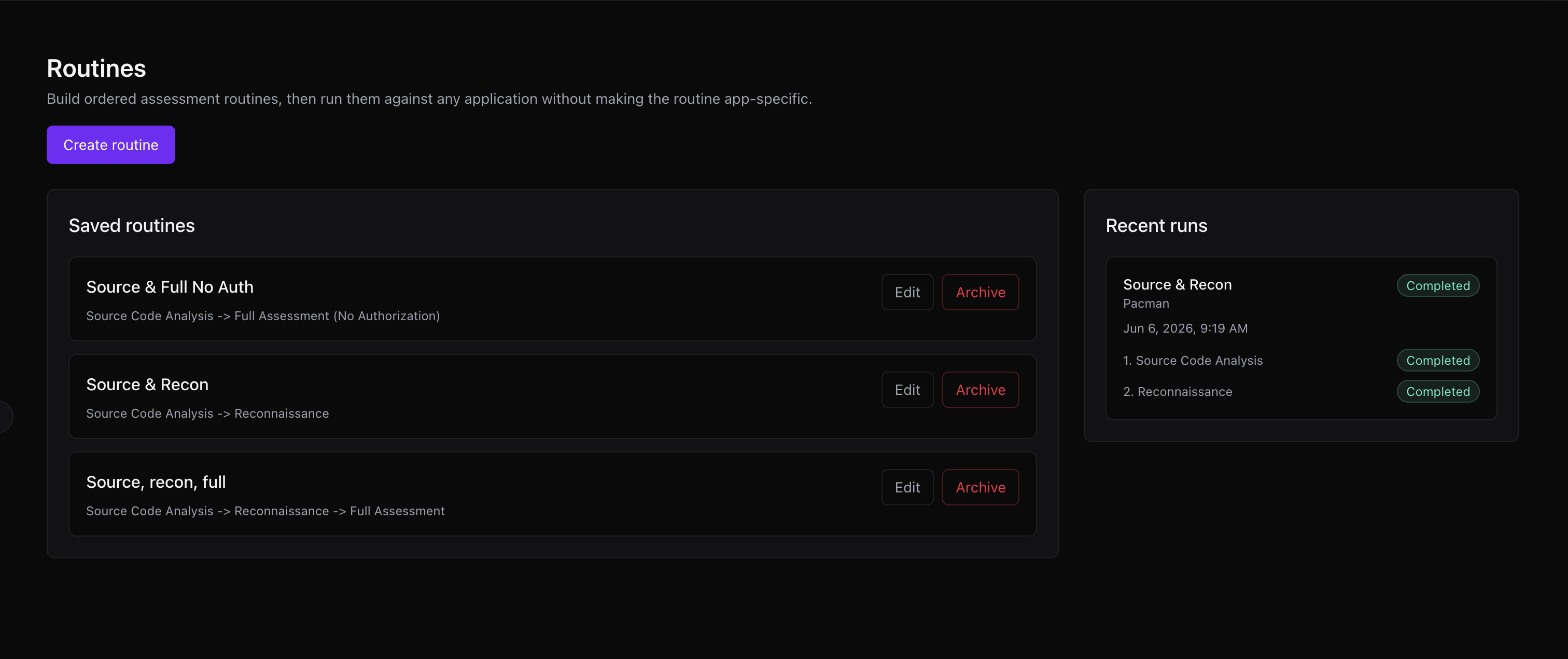
Routines let you save an ordered assessment workflow and run it against an application later. Use them when your team wants the same sequence each time instead of rebuilding the launch plan manually.
Common examples include recon before a full assessment, source-code analysis before runtime testing, or a repeatable release-candidate workflow. The Routines page shows saved routines and recent runs together.
#Provided templates
When provided routine templates are available, they appear in the Routines workflow. A template appears only when its assessment types are available for the selected application and organization. Choose Copy on a template to create a routine you can review and adjust, then save it before launching.
Before an application's first launch, recommended templates may appear under Recommended for your first assessment. To avoid duplication, they may not also appear in Provided routines, and they disappear after the first launch.
If no templates appear, create a routine manually or check Troubleshooting.
#Create a routine
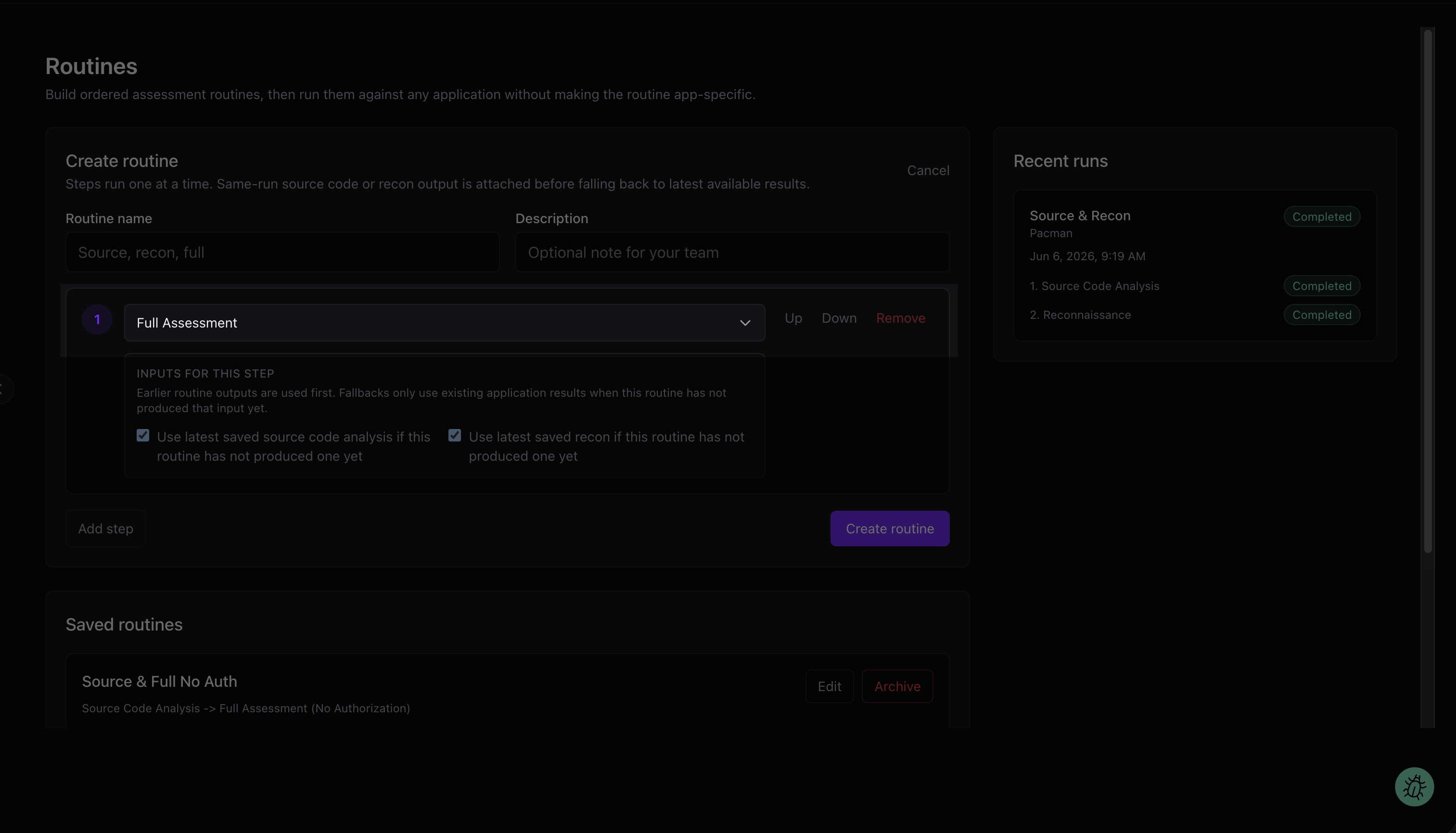
Open Routines, then choose Create routine.
Add:
- Routine name: use a short name that describes the workflow, such as
Recon + source + full. - Description: optional context for your team.
- Steps: the ordered assessment types Tahr should run.
Each step runs after the previous step completes. Move, remove, or add steps while building the routine.
Routines currently support up to 10 steps.
#Choose routine steps
Pick each assessment type based on the evidence later steps should use.
Good routine shapes:
- Recon → Full assessment: use recon to map the target surface in a dedicated non-production environment before broader testing.
- Source-code analysis → Full assessment: use repository findings and source context before runtime testing.
- Recon → Source Code Analysis → Full Assessment: use external and code context before broad runtime testing.
Retest assessments are not supported inside routines yet. Run retests separately from the finding or assessment workflow.
Use Add step, choose the assessment type, and move it into order.
#Reusing recon and source outputs
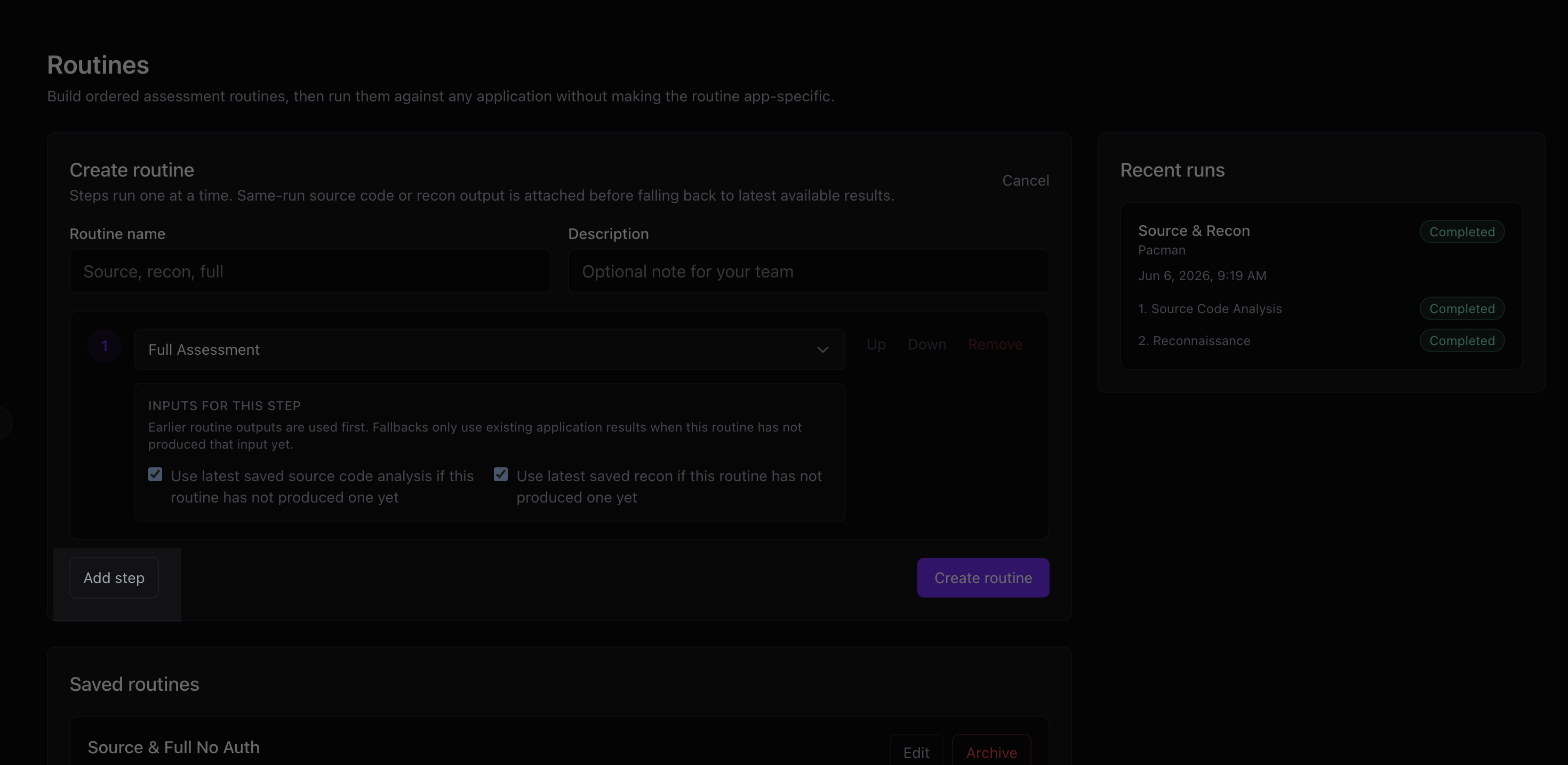
Routines can pass useful output forward.
When a later step supports source-code or recon input, Tahr first uses output from the same routine run. If that input has not been produced, it can fall back to the application's latest saved result when enabled in the step settings.
Put recon before a runtime step when the runtime assessment should use fresh recon.
#Automatic reports
When Reports is enabled and configured, use the per-step toggle to generate a report automatically. Select the report type, format, and sections; available options depend on the organization and assessment. After a supported step completes, its generated report appears in Reports report history.
#Edit or archive a routine
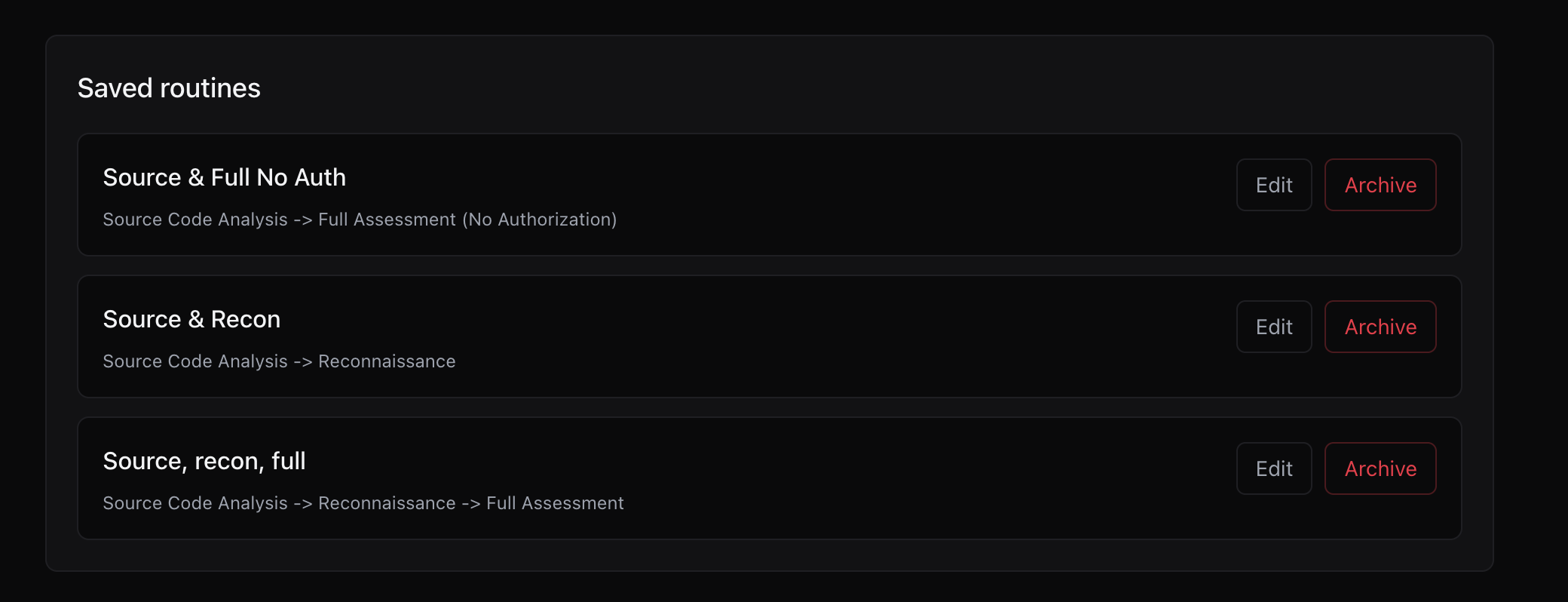
Saved routines appear in the Saved routines list.
Use Edit to change the name, description, order, assessment types, input settings, or automatic report options.
Use Archive when a routine should no longer be used. Archiving removes it from the active routine list; it does not delete historical routine runs.
#Start a routine
Routine runs start from the assessment launch flow.
- Open Assessments.
- Choose the routine start mode when it is available.
- Select the application.
- Select the routine.
- Review blockers and warnings.
- Choose a reserved IP if the routine includes target-based testing, the selected application is behind a WAF, and Tahr requires one.
- Start the routine.
Tahr previews blockers before launch and checks again before each step. Fix blockers before starting.
New routine launches may be temporarily unavailable. Existing runs can continue, and scheduled occurrences may be skipped or advanced; check the visible schedule or run status before retrying.
Warnings can appear when a run may work but quality may be lower, such as authenticated testing without Sign-in automation.
#Reserved IP behavior
If the application is marked as behind a WAF, a routine containing any target-based assessment requires a reserved IP. A routine made entirely of repository-only steps, such as Threat Modeling, Source Code Analysis, or Source Code Diff Review, does not use a reserved IP. The selected reserved IP must be running and allowed for the application.
If no suitable reserved IP is available, reserve one in Administration before launching the routine. See Reserved IPs.
An active routine can prevent a reserved IP from being released. Wait for it to finish or choose another IP.
#Recent routine runs
Recent runs show:
- Routine name.
- Application name.
- Overall run status.
- Run timestamp.
- Per-step status.
- Step-level assessment type.
- Any error attached to the run or step.
Routine statuses include:
- Queued: the step is waiting for earlier work.
- Running: the run or step is active.
- Completed: the step finished successfully.
- Failed: the step failed and later queued steps are skipped.
- Skipped: the step did not run because an earlier step failed.
- Cancelled: queued steps were cancelled by a user.
#Cancel queued steps
You can cancel queued steps for a running routine. This stops future steps from starting.
The currently running assessment is not automatically cancelled by the routine cancel action. If you need to stop the active assessment itself, handle that from the assessment run workflow.
#Routine design guidance
Keep routines focused. A routine should represent one repeatable testing workflow, not every possible assessment type.
Use separate routines when the intent is different:
- One routine for release validation.
- One routine for source-first review.
- One routine for authorization-focused testing.
- One routine for external recon.
Put context-producing steps first. Recon and source-code analysis are most useful when later steps can consume their results.
Avoid routines that depend on unstable test users, pending domain verification, or one-off manual setup. Fix the application setup first, then save the routine.
#Troubleshooting routines
If a routine cannot start, confirm that the application is ready, its assessment types are available, and its repository, API, authorization, authenticated-user, and reserved IP setup is complete. Also check that another assessment is not already active for the application. For a failed run, inspect the failed step first; later queued steps are skipped. See Troubleshooting for routine input issues.