Use Reports when you need a shareable output from a completed assessment. Reports are generated from existing assessment results, so start in Findings when you still need to review, triage, or change finding status.
#Before you generate a report
Reports are available for completed assessment results when the relevant report options are shown in your workspace.
Before generating one, confirm:
- The assessment is completed.
- The findings have been reviewed enough for the intended audience.
- The report sections, report types, and export formats you need are shown.
If Reports is unavailable, contact your Tahr support contact rather than changing unrelated application settings.
#Generate a report
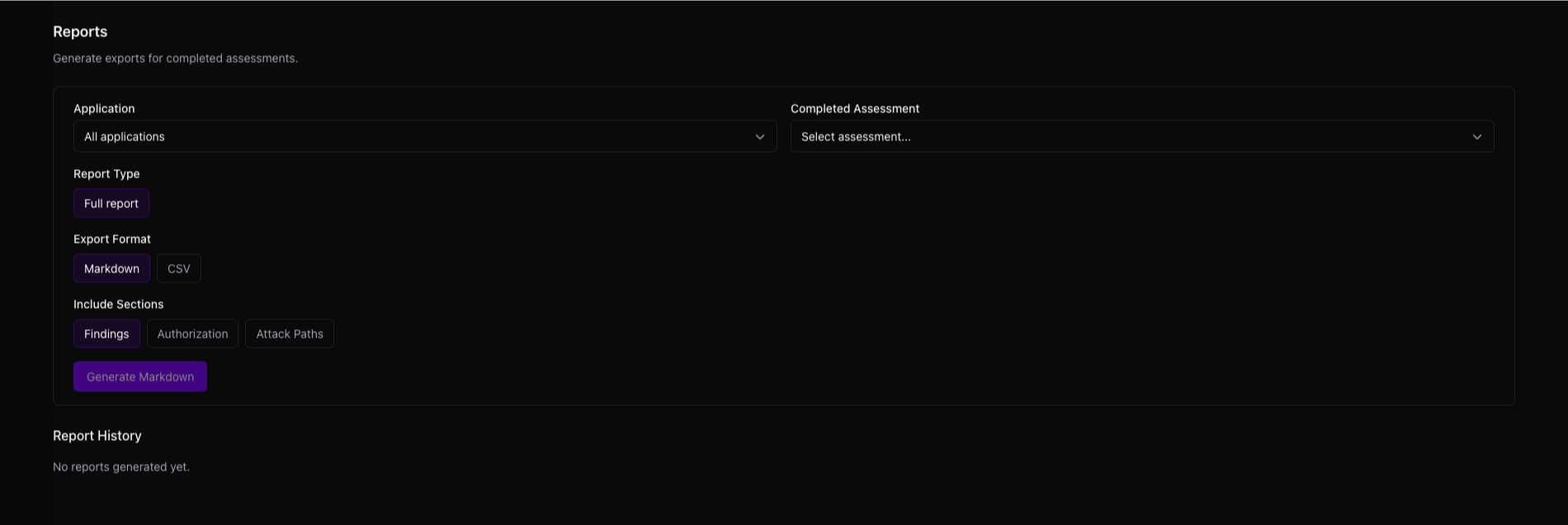
Open Reports, then choose:
- Application: filter the completed assessment list to a specific application, or keep all applications visible.
- Completed assessment: choose the assessment the report should use.
- Report type: choose Full report or Executive report, depending on what your organization has enabled.
- Export format: choose the available output format.
- Included sections: select at least one report section.
Then click Generate. The report appears in report history while it is being generated.
#Report sections
Available sections depend on the selected assessment and what Tahr shows. Standard reports can include:
- Findings: standard vulnerability findings from the assessment.
- Authorization: authorization-specific findings and access-control evidence.
- Attack Paths: chained issues where multiple findings combine into a larger path.
Choose only the sections that make sense for the audience. For example, an executive report may need fewer technical sections than a remediation handoff.
Standard reports summarize assessment findings and evidence. Threat Modeling has a separate workspace and output, while Source Code and Recon have separate workspaces and outputs; use those areas when you need their specialized context.
#Export formats
Available export formats depend on your organization's configuration and can include PDF, HTML, Markdown, and CSV.
Use PDF or HTML for shareable rendered reports, Markdown for editable text, and CSV for filtering or tracking.
#Report history
Report history shows reports that were generated for the organization. Each row includes:
- Generated time.
- Creator.
- Application.
- Completed assessment.
- Report type.
- Format.
- Included sections.
- Status.
Reports generated automatically by routine steps appear in this same history, subject to the configured report options.
Statuses can be Generating, Completed, or Failed.
#Download, retry, and delete
Completed reports can be downloaded from report history. If a report is still generating, wait for it to finish before downloading.
If generation fails and the retry action is available, use Retry generation once the underlying issue has been addressed.
When Delete is available, remove a report only when it is no longer needed or was generated with the wrong scope.
#Troubleshooting
If you cannot generate a report, check:
- The report options you need are available in the page.
- You selected a completed assessment.
- You selected at least one section before generating.
If the report content looks incomplete, return to Findings and confirm the assessment output you expect is present before generating another report.