Administration controls who can use Tahr and which assets your team is allowed to assess.
#Settings areas
Administration is organized into these areas:
- General: organization name, timezone, owner, and organization lifecycle actions.
- Domain: DNS verification for application and API domains.
- Users: members, invitations, and role assignment.
- MCP: manage member access and organization tokens for MCP clients when available.
- Integrations: repository access and ticketing destinations.
- Reserved IPs: static IPs for WAF and firewall allowlists.
- SSO Accounts: shared SSO-backed test accounts for authenticated testing.
- SMS: phone numbers used for SMS-based 2FA in test identities.
#General settings
Use General to rename the organization, choose its timezone, or copy the Organization ID when Tahr Support requests the exact identifier. The timezone affects scheduled work and displayed timestamps. Click Save changes after editing.
Ownership changes and deletion are sensitive actions. The current owner can choose Transfer ownership, select a trusted member, and confirm. At the end of General, the Danger Zone contains organization deletion. Deletion removes organization-scoped applications, domains, API keys, and member access; use it only when the organization is no longer needed and confirm the organization name when prompted.
#Domains
Domains define the hostnames your organization can use for applications and API targets. Tahr requires verification before an application can be marked ready for assessment.
#Where to verify a domain
Manage verification from Administration in Domain. You need a role that can manage domains. If you can view domains but cannot change them, ask an organization administrator to assign an appropriate role.
#Verify a domain
- Open Administration, then Domain.
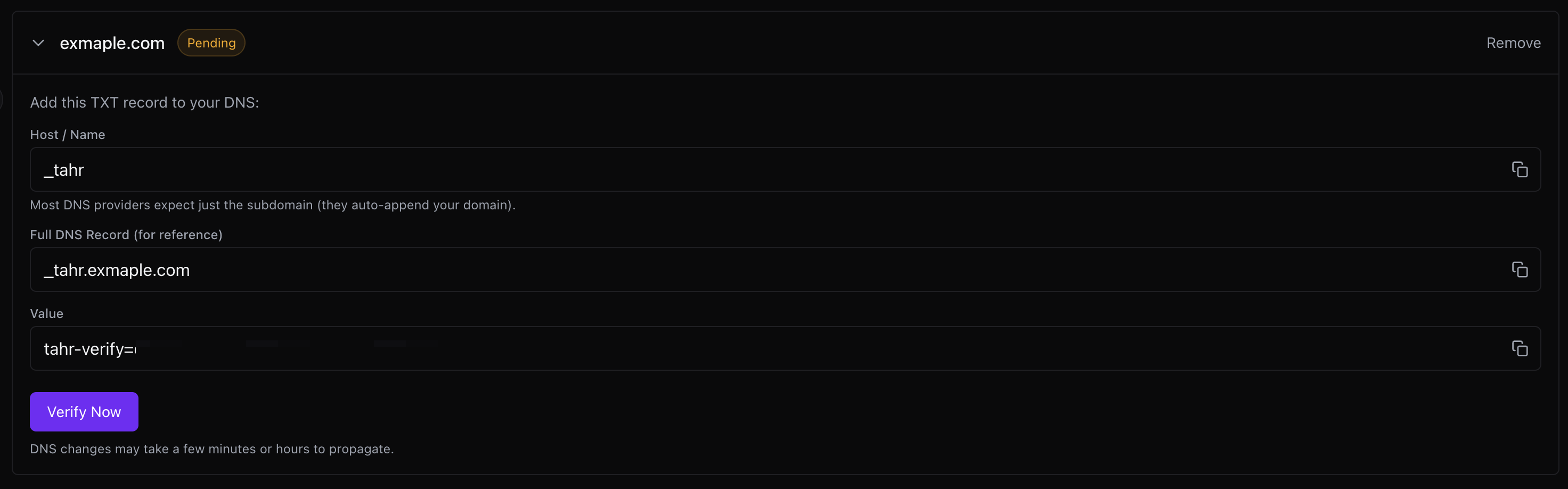
- In Add Domain, enter the domain name only, such as
example.com. Do not includehttps://, paths, query strings, usernames, or email addresses. - Click Add Domain, expand the pending domain in Your Domains, and copy its TXT record to your DNS provider.
- Wait for DNS propagation, then return to Tahr and click Verify Now.

Tahr displays Host / Name (_tahr), Full DNS Record (_tahr.example.com), and Value (tahr-verify=<verification-token>). Providers usually append the domain to _tahr; use the full record name when requested. A successful status changes from pending to verified, and a verified parent covers subdomains. If verification fails, check the exact TXT value and allow more time for propagation.
#Users and invites
The Users area shows members, pending invitations, roles, and removal controls. Only roles that can manage members can invite users, change roles, or remove members.
#Add a member
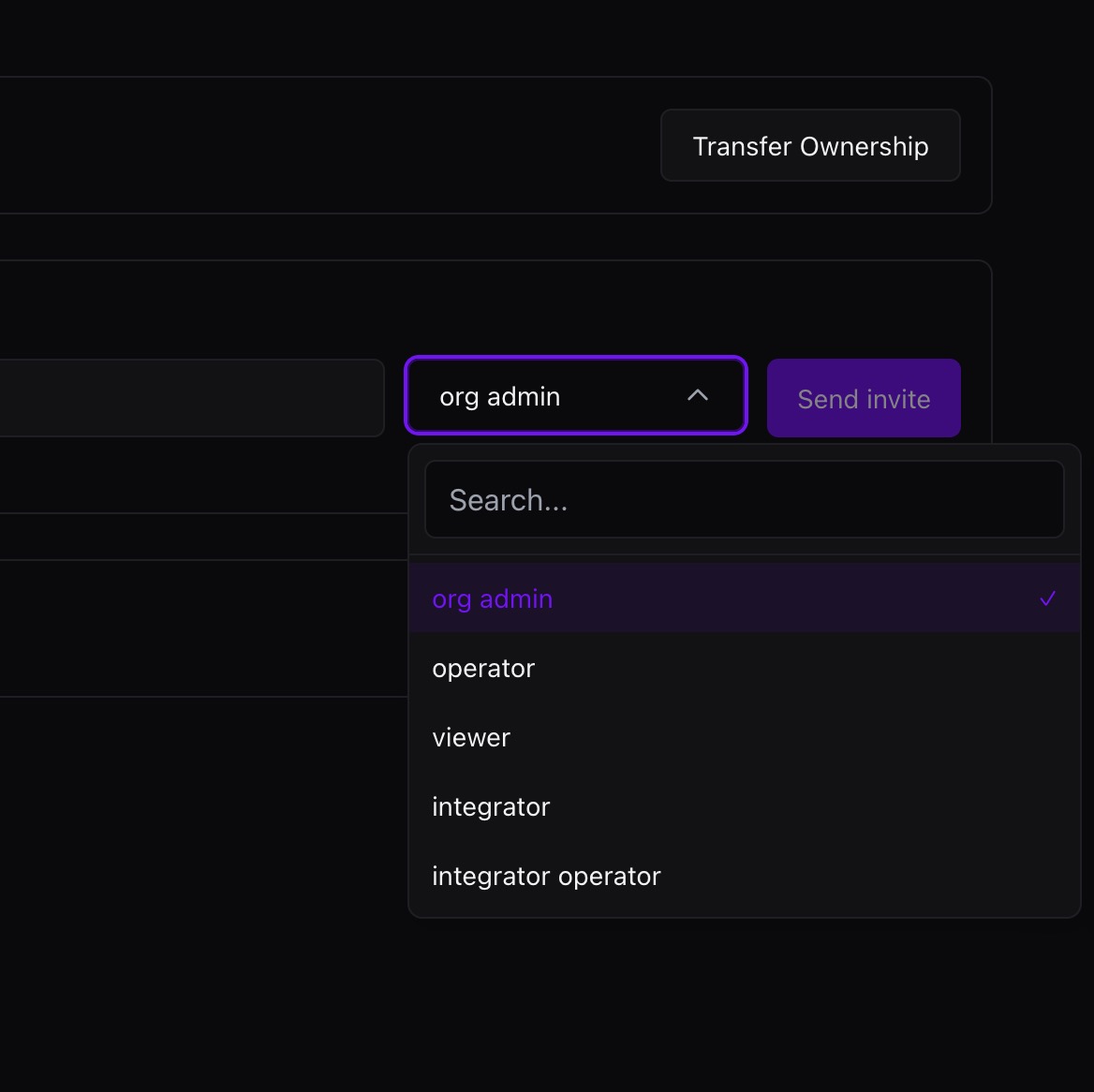
Open Administration > Users, enter an email in Invite team member, choose a role, and click Send invite. The user remains under Pending invites until acceptance or expiry. Use Revoke for a mistaken invite and Show invite history to review older invitations.

#Choose a member role
Assign the lowest role that meets the user's work:
- org admin: manage Administration, members, billing, integrations, applications, assessments, findings, and reports.
- operator: manage applications, run assessments and schedules, review findings, and use reports.
- viewer: inspect available organization and assessment information without changing setup or starting assessments.
- integrator: manage integrations, domains, reserved IPs, and application setup, and inspect findings and reports.
- integrator operator: combine operator and integrator capabilities.
The selector shows only roles the current user can assign. When an information control or role-details modal is shown, use it to review the assignable roles and their grouped capabilities before choosing a role. Start with viewer when possible and increase access only when needed.
#Manage existing members
Use the member row to change a role or remove a member. Removal revokes access immediately. Do not remove the organization owner before transferring ownership through the supported flow. Invite only people who need access to sensitive assessment data, repositories, credentials, or test-user setup.
#Integrations
Use Integrations for external systems used by assessments and downstream workflows. See Integrations for current provider procedures. Plans, credits, payment details, invoices, and reserved IP capacity are covered in Billing. You need a role that can manage integrations to add, edit, or delete connections.
#Repository access
Repository access connects GitHub, Bitbucket, GitLab, or a personal access token so Tahr can read source code. Open Integrations to connect a provider, select the repository or namespace, test access, or change the default integration.
#Ticketing integrations
Ticketing integrations send findings to Jira, GitLab, Azure DevOps, Linear, or another ticketing integration shown for your organization. Open Integrations to add the provider, configure its project or team, scope it to All apps or Specific apps, choose a default, and use Test connection. Keep tokens secret.
#MCP access
Administrators can grant member MCP access and manage organization MCP tokens from Administration > MCP when it is available. Personal tokens and client setup are in Profile > MCP; see MCP access. Organization MCP access applies to the organization, so grant only the access needed and revoke unused access or tokens.
#Reserved IPs
Reserved IPs are static IPs for targets that only accept traffic from approved addresses, such as a WAF, firewall, VPN, or network allowlist. Availability depends on the organization plan. If the tab says reserved IPs are not available, review Billing or contact Tahr Support.
To reserve and scope an IP:
- Open Administration > Reserved IPs and click Reserve IP.
- Wait for the status to become Running, then copy the IP into the required allowlist.
- Click Modify under Scope and choose All apps or Specific apps. For specific apps, select them and click Add, then Done.
Statuses include Running (ready), Provisioning (not ready), Releasing, and Error. Use Specific apps when targets have different allowlist rules. Before Release, remove the IP from WAF or firewall rules and confirm no active assessment or routine needs it. Tahr blocks release while the IP is in use or has an active dependency. See Troubleshooting if it remains unavailable.
#SSO accounts
Use SSO Accounts when SSO is enabled for your organization, the area is shown, and you have permission to manage it. Add only an organization Google or Microsoft test account that is safe for automated testing. Creating or changing an account can disrupt access or trigger an account ban; acknowledge that risk before continuing.
- Open Administration > SSO Accounts.
- Click Add account for Google or Microsoft.
- Enter the email and password, then provide TOTP when requested. TOTP may be optional when you first create the account.
- Click Save account. An account without TOTP is not ready or selectable for application authentication until you choose Configure TOTP.
When the controls are available, use Replace TOTP for an existing account and update its password as needed. The TOTP preview and copy are short-lived; never share the secret or code.
If Remove or Delete is shown, remove an account that is no longer needed. Remove application references first if Tahr requires it.
#SMS numbers
Eligible organizations can use SMS when it is shown for SMS-based 2FA test identities. Claim an available number, or claim additional numbers when your organization has that entitlement. Inspect or copy the active number details for the relevant application test identity. Before Release, remove every reference to the number from application test identities. If number inventory or your entitlement is unavailable, contact Tahr Support. See Billing for SMS capacity and add-on billing.
#Safe setup checklist
Before adding applications, confirm:
- Domains are verified.
- Members have the minimum role they need.
- Dedicated test users are available for authenticated testing.
- Reserved IPs are configured if the target requires allowlisting.
- Repository access is connected for source-code review.
- Ticketing integrations are scoped correctly if findings should create tickets.
- SSO accounts or SMS numbers are available when authenticated testing needs them.
For the canonical provider procedures, use Integrations; for blockers, use Troubleshooting.